Visualize, Repair, Transform & Monitor
your data & documents.
The all-in-one developer toolkit for JSON, YAML, XML, CSV, TOML and PDF. From AI-powered formatting and real-time monitoring to advanced PDF processing and schema generation. Built for modern development workflows.
Features
Formatter
AI-Powered formatting, syntax repair, and validation
Visualizer
Interactive Tree, Graph, and Table data explorers
Monitor
Real-time API health tracking and performance metrics
JSON Path
Powerful query engine for complex data extraction
Diff Helper
Advanced structural comparison and change detection
Other tools
Converters, Generator, PDF Tools, and Validators
Enterprise-Grade Advanced data visualization
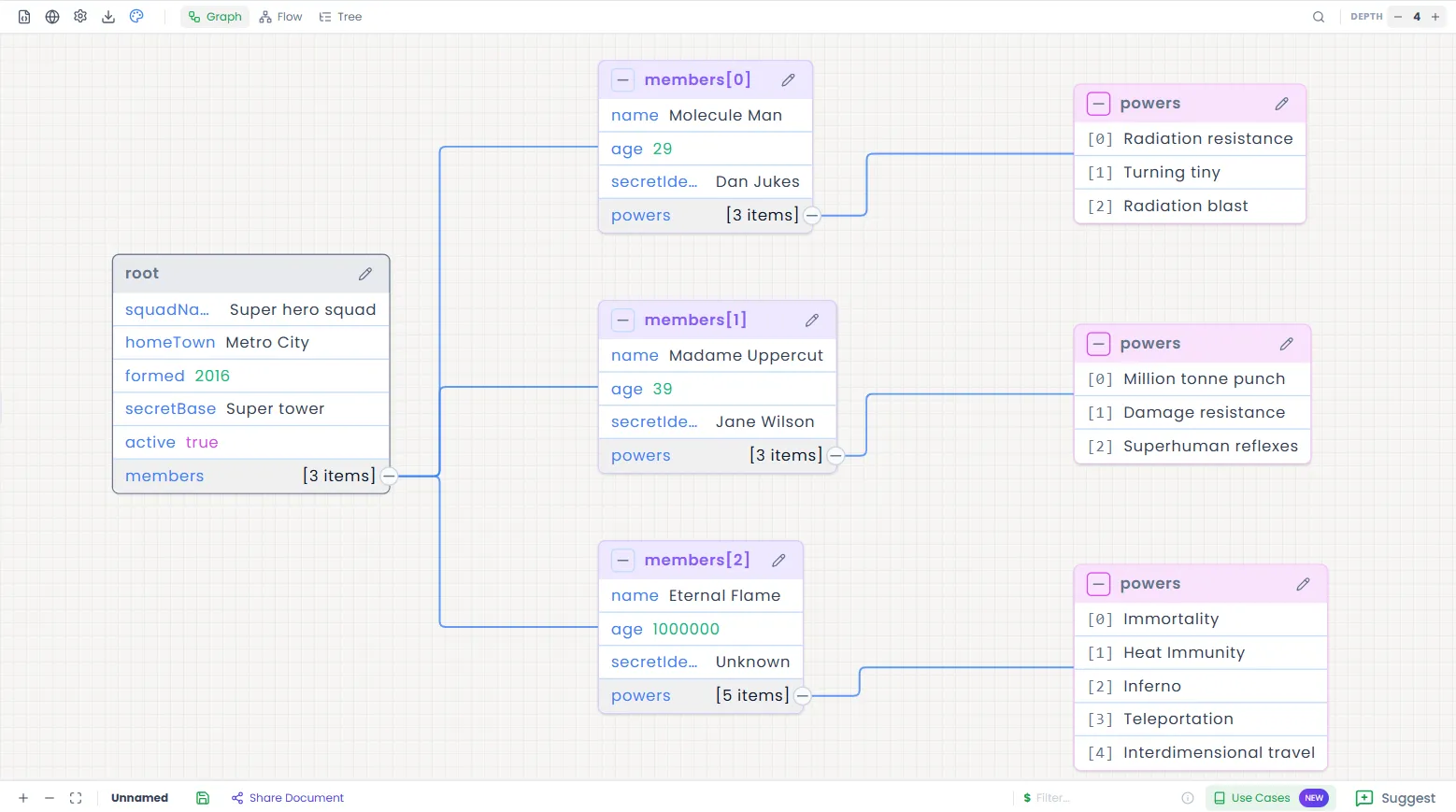
The ultimate playground for structural analysis. Switch between Tree, Graph, and Table views instantly. Built for deep hierarchies and professional collaboration.
Smart Formatter & Repair
The most advanced playground for cleaning, fixing, and transforming JSON at scale.
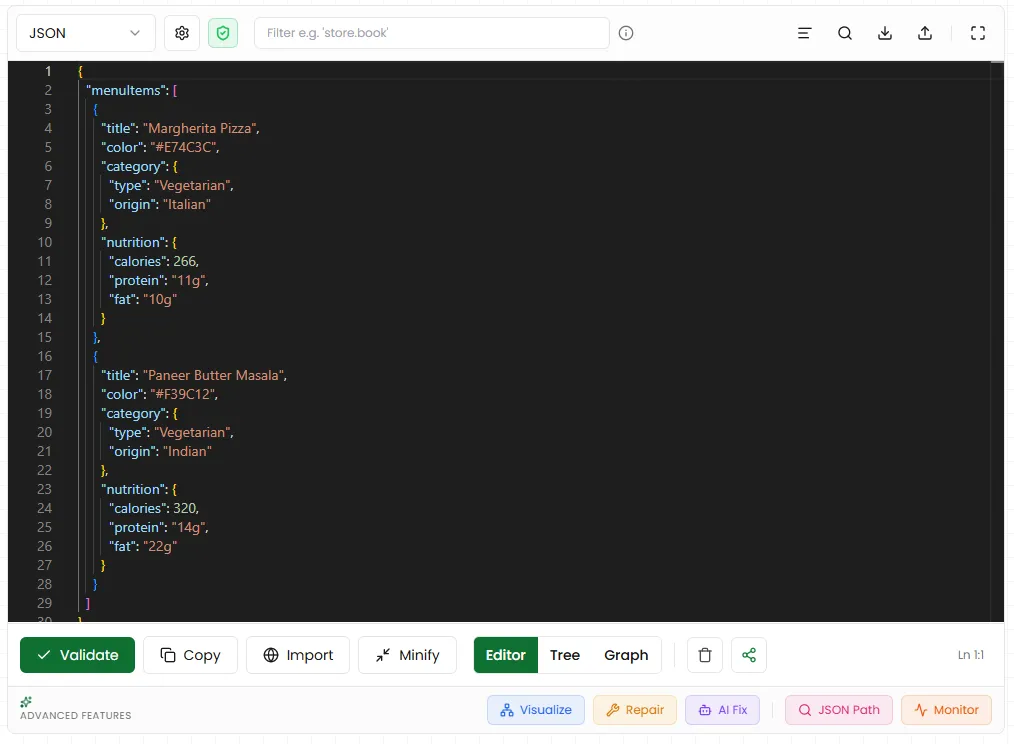
AI Powered Multi-view
Leverage advanced AI to format and transform your data. Switch between multiple optimized views designed for readability and professional editing.
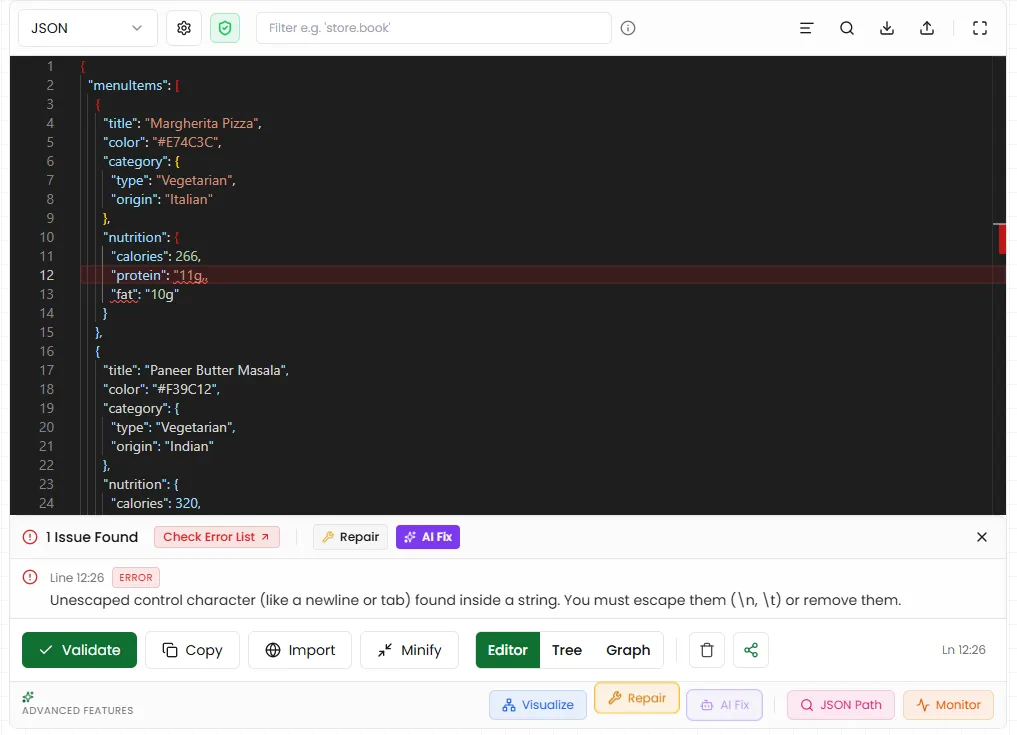
Repair Broken JSON
Never worry about syntax errors again. Our intelligent engine fixes missing quotes, trailing commas, and invalid structures instantly.
Exact Error Detection
Get pinpoint accuracy on structural failures. We identify the exact line and character causing issues, providing immediate context and fix suggested.
Detect Errors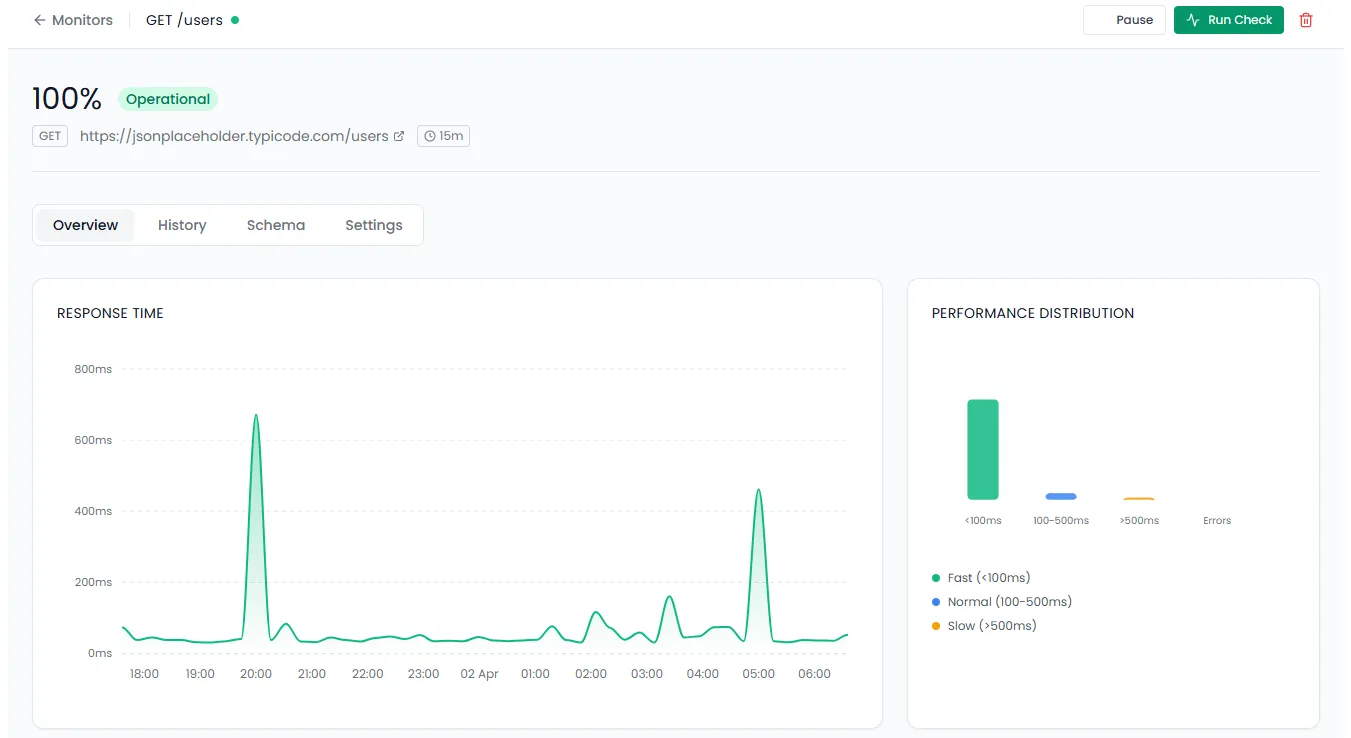
Real-time API
Health & Metrics
Track the uptime, performance, and accuracy of your JSON APIs. Get notified instantly when something breaks.
Setup Monitor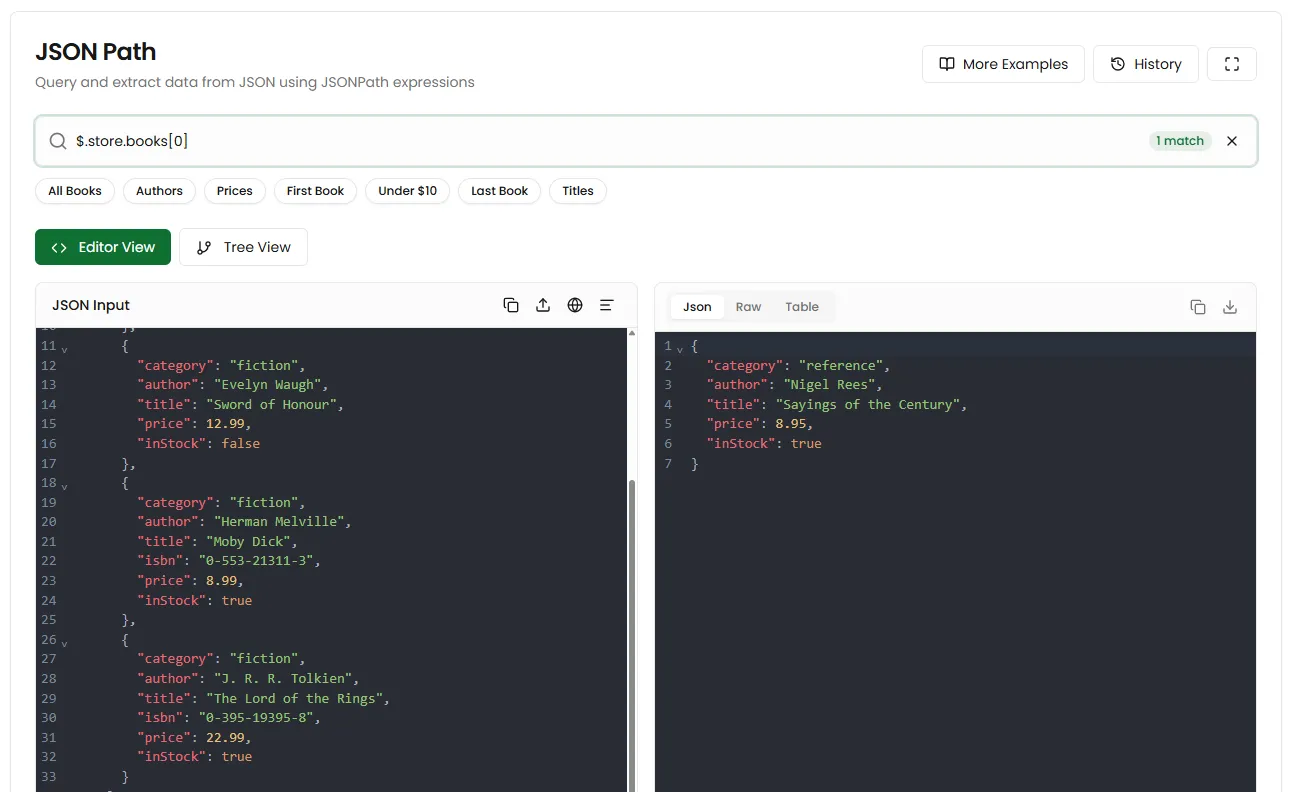
Query complex data
with JSONPath
Filter, extract, and transform large JSON objects with real-time feedback. Build complex queries visually and export results instantly.
Evaluate JSONPath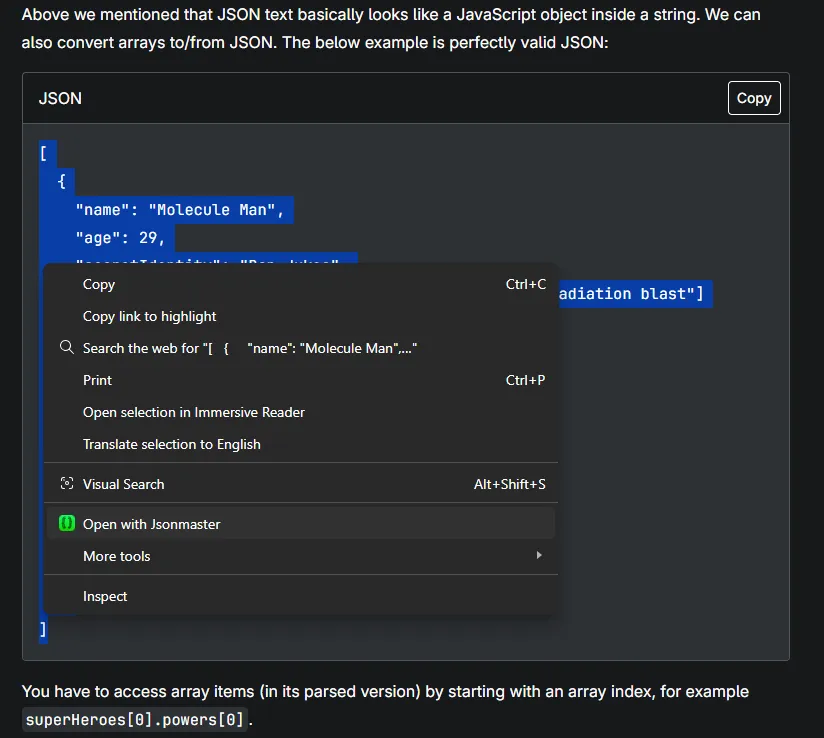
One-Click Browser Toolbar
One click in web to repair, format, and visualize JSON, XML, and all supported formats. Instant productivity for your daily web development.
Install for Chrome / EdgeExplore Tools
Converters
Validators
PDF Tools
Built by developers,
for developers
I am a solo developer passionate about building tools that make our lives easier. JSONMaster is a project born out of the need for a faster, more intelligent JSON toolkit.